Your tenant’s workspace
Within the Bosch Semantic Stack workspace, access the applications that are available for your tenant.
Tenant ID
To ensure strict data segregation, Bosch Semantic Stack is built on a multi-tenant architecture.
Tenants serve as isolated environments designed to provide each organization with a dedicated and secure space.
The tenant ID is vital for accessing your tenant’s workspace, especially:
-
For your first visit to a tenant
-
After clearing your browser’s cache
-
When accessing a tenant from a new browser or device
In such cases, you must include your tenant ID in the workspace URL:
| https://workspace.bosch-semantic-stack.com/?tenant=<your-tenant-id> |
For more details, see First visit to a tenant’s workspace.
Your tenant ID was communicated to your organization upon tenant creation. For any questions, consult your organization’s tenant manager or tenant administrator.
Consider adding a bookmark with the full workspace URL — including the tenant ID — to your browser.
Where your tenant ID is displayed
While logged in to your tenant’s workspace, find the tenant ID under:
Your user name > Tenant ID
From there, you can also copy the tenant ID.
Note that there is no other way to retrieve your tenant ID from the system.
| Should you have forgotten your tenant ID and now need it to access your tenant’s workspace again, do not request access through our support team. Consult your organization’s tenant manager or tenant administrator instead. |
First visit to a tenant’s workspace
Prerequisite: You must know the tenant’s ID.
1. Navigate to your tenant’s workspace
How to proceed: Add the tenant ID to the following URL.
In the URL, replace <your-tenant-id> with the tenant ID that you want to access.
For example:
https://workspace.bosch-semantic-stack.com/?tenant=1e2x3a4m5p6l7e8i9d0
Add another tenant, switch between tenants
Prerequisites
-
You are logged in to a tenant
-
You have another tenant ID
-
You have access to the other tenant with your current user account
How to proceed
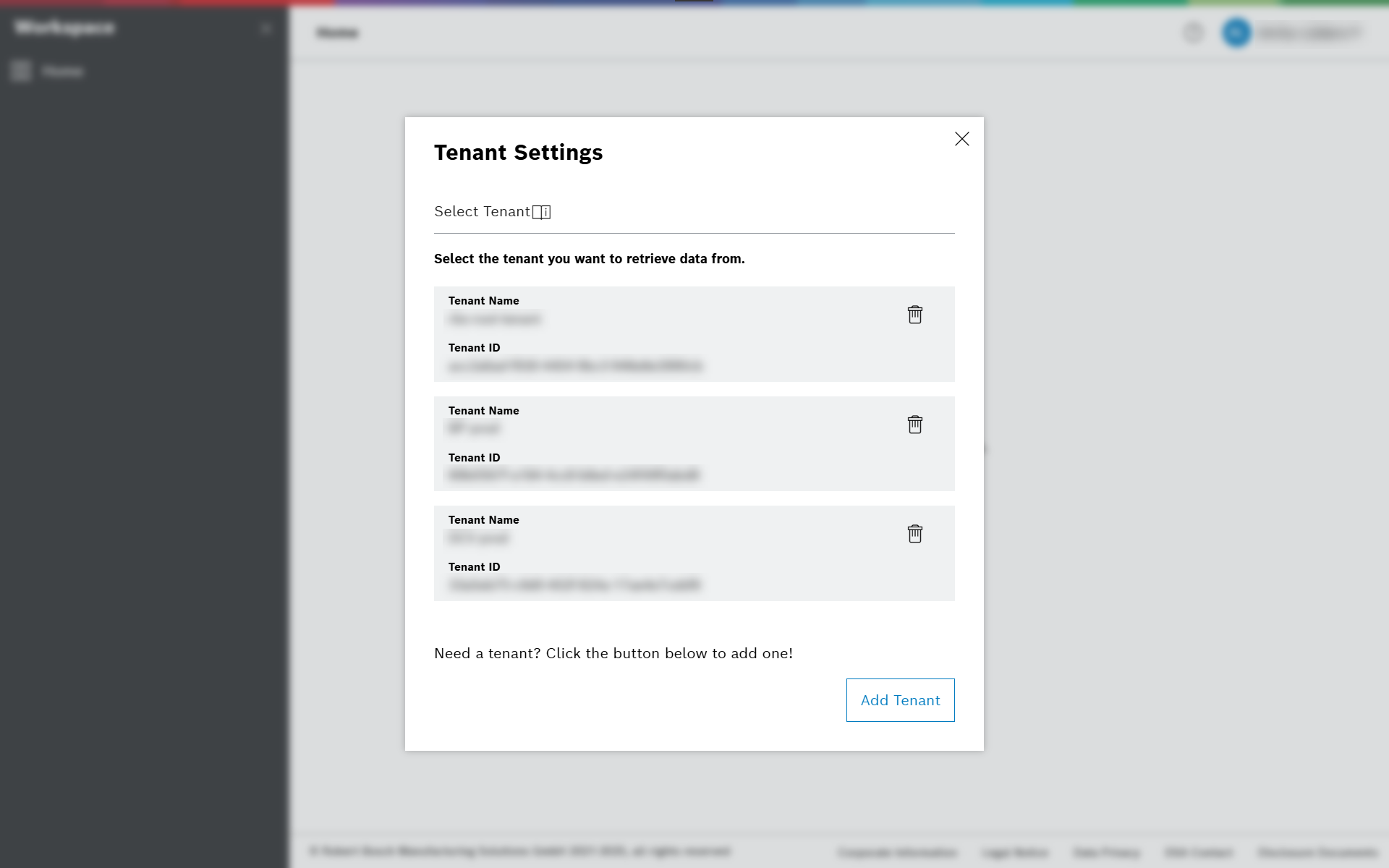
In the workspace, to add another tenant to your user account:
-
Navigate to your user name > Tenant.
-
Click Add Tenant.
-
Enter the tenant ID you want to add.
-
Optionally, enter a name for the tenant to help you distinguish it later.
-
Click Add Tenant.
→ Result: Your tenant list now has another entry and you can easily switch between the tenants you have access to.
Tenant management
As a tenant manager, you grant access and give permissions to users and technical clients.
To do so, use the Multitenant Access Control portal.
Typical tasks for tenant managers are:
As a reference, consult the list of all available roles.